How to Send HD Photos on WhatsApp Without Losing Quality
WhatsApp compresses every photo you send through its media picker. It happens automatically, it's invisible, and most people don't notice until they compare the original to what arrived on the other end - and the difference is obvious. Softer edges, reduced detail, colors that look slightly off. For casual sharing that's often fine, but for anything where the image actually matters, it's a problem that has a straightforward fix.
There are two methods that work, and they serve different needs. Here's exactly how to use both.
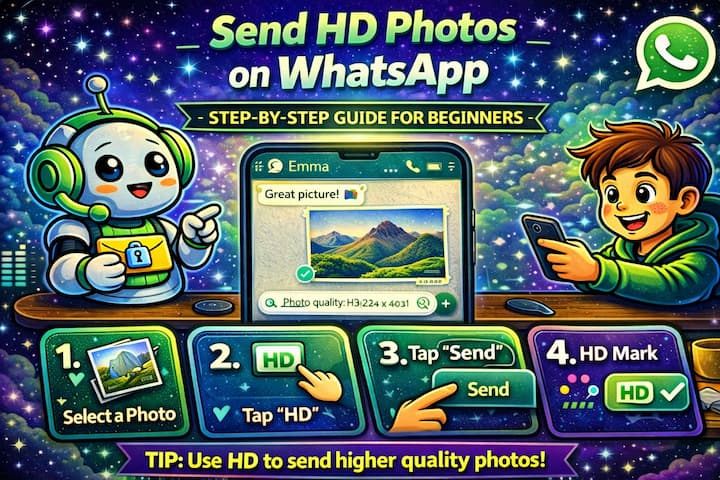
Quick Answer (For Those in a Hurry)
To send a photo with better quality, tap the HD button that appears in the top-right corner of the photo preview screen before hitting send - this reduces but doesn't eliminate compression. For truly lossless quality with zero compression, go to the attachment menu -> Document and select your photo as a file instead of a media attachment. The document method sends the original file exactly as-is.
What This Guide Actually Helps You Do
This guide is designed for readers who want to send or manage media without losing quality, storage, speed, or privacy control. It adds value beyond the basic menu path by explaining whether the file should be sent as media, as a document, through a link, or handled with a storage-saving setting. That matters because people often choose the fastest send button and only notice compression, failed uploads, missing previews, or storage problems later.
The practical goal is to leave you with a result you can verify, not just a menu path you followed. It also keeps the limits visible: this guide does not pretend to offer unlimited file size, perfect quality on every connection, or permanent access if the receiver deletes or loses the file. It shows the reliable path, the trade-offs, and the checks that help you avoid repeating the same mistake.
Real Situations Where Photo Quality Actually Matters
WhatsApp compression is invisible when you're sharing a casual snap. It becomes a real problem in specific situations.
You're sending product photos, portfolio work, or anything that will be judged on quality. A photographer sending proofs to a client, a designer sharing mockups for approval, a small business owner sending product images to a buyer - in all of these cases, the person receiving the photo is evaluating it. Compression that softens fine detail, reduces sharpness, or shifts colors even slightly can affect a purchasing decision or professional impression in ways that are hard to recover from.
You're sharing a screenshot or a document photo that contains readable text. WhatsApp compression is particularly brutal on images with text - fine fonts, small print, QR codes, handwritten notes, receipts. The compression algorithm treats edges and fine detail as redundant data to discard, which means text that's perfectly legible in the original can become blurry or unreadable by the time it arrives. If the recipient needs to read what's in the image, quality matters.
You want to preserve a memory at its actual resolution, not a degraded version of it. Photos from modern phones are high-resolution files. Sending them through WhatsApp's standard media picker can cut the file size by 80% or more, which means you're sharing a fraction of what the camera captured. If you're sending a photo someone will print, frame, or keep permanently, sending the original quality is worth the extra step.
Before You Choose a Method: One Thing to Know
WhatsApp's HD option and the Document method are not the same thing. HD reduces compression significantly and is usually good enough for most quality-sensitive uses - but it still applies some compression. The Document method sends the original file with zero modification. If you need the image to arrive exactly as it left your phone, only the Document method guarantees that.
The HD button is faster and more convenient. The Document method is more thorough. The right choice depends on how much quality actually matters for that specific image.
Method 1 - Send a Photo in HD Quality
This is the fastest method and works directly inside WhatsApp's normal photo-sending flow.
Step 1 - Open the Chat and Tap the Attachment Icon
Open the conversation you want to send to and tap the paperclip icon (Android) or + (iPhone) to open the attachment menu.
Step 2 - Select Your Photo from the Gallery
Tap Gallery or Photos and select the image you want to send. The photo will load in the preview screen.
Step 3 - Tap the HD Button Before Sending
Look for the HD button in the top-right corner of the photo preview screen - it appears as a small "HD" label. Tap it, then select HD Quality from the options that appear.
The button will change to confirm HD is now active for this send.
Step 4 - Send the Photo
Tap the send button. WhatsApp will send the image with significantly reduced compression compared to the standard setting. The recipient will receive a higher-quality version, and on their end they'll see a small HD label on the photo indicating it was sent at higher quality.
Note: The HD setting applies per photo, per send - it doesn't stay on by default. You'll need to tap it each time you want HD quality. If you regularly send quality-sensitive images, this is the step most people forget.
Method 2 - Send a Photo as a Document (Zero Compression)
This method routes the image through WhatsApp's file-sharing system instead of its media system, which means no compression is applied at any point.
Step 1 - Open the Chat and Tap the Attachment Icon
Same starting point - open the conversation and tap the paperclip or + to open the attachment menu.
Step 2 - Select Document Instead of Gallery
In the attachment menu, tap Document. This is the key step. Do not select Gallery, Photos, or Camera - those routes trigger the media compression pipeline.
Step 3 - Navigate to Your Photo
Your phone's file browser will open. Navigate to the folder where your photo is saved - typically your camera folder or downloads. Tap the image file to select it.
Step 4 - Send and Confirm
Tap send. The photo uploads and sends as a file attachment rather than a media preview. The recipient sees a file card in the chat with the filename and size, taps to download, and receives the original file - same resolution, same file size, exactly as you shot or saved it.
Note: The photo won't display as an inline preview in the chat the way a normal photo does - it appears as a downloadable file. That's a minor UI difference, not a quality issue. The file itself is intact.
What Changes Depending on Which Method You Use
When you send with HD, the photo appears normally in the chat as a media message - the recipient sees it inline, can tap to expand, and it looks noticeably sharper than a standard send. It still goes through WhatsApp's processing pipeline, just with lighter compression. For most recipients and most devices, this is a meaningful improvement that's barely distinguishable from the original.
When you send as a Document, the experience shifts slightly. Instead of an inline photo, the recipient sees a file attachment they tap to download. Once downloaded, they open it in their phone's photo viewer and see the original in full resolution. If you're sending to someone who will use the photo - print it, edit it, post it elsewhere - this is the version that gives them the actual file, not a processed copy of it.
The size difference is significant. A 5MB photo sent via standard might arrive at 400KB. The same photo sent via HD might arrive at 1.5MB. Sent as a Document, it arrives at the full 5MB. That difference in file size is quality, and it's worth thinking about before you choose.
Advanced Tips: Getting Consistently Better Results
Beyond the two core methods, there are habits and settings that affect photo quality before WhatsApp even gets involved.
Don't screenshot an image before sending - always share the original file. Screenshots on modern phones are compressed by default, meaning you're adding a second round of compression on top of whatever WhatsApp will apply. If someone sends you an image and you want to forward it at quality, download the original from WhatsApp and resend it rather than screenshotting and sending that.
Check your phone's camera export settings if your photos seem soft before they even reach WhatsApp. Some phones - particularly certain Samsung models with Smart Optimization enabled - apply in-device compression when saving photos to the gallery. If your original files are already smaller than expected, the issue may start at the camera level, not at WhatsApp. Checking your camera's storage settings can reveal whether compression is happening before you even open the chat.
Use the Document method as your default for anything you want the recipient to keep or use professionally. If you're a photographer, designer, or anyone who regularly shares work over WhatsApp, building the Document habit as your default for important sends means you never have to think about it in the moment. Reserve the HD button for quick quality improvements when the Document flow would be inconvenient.
If you receive a compressed photo and need the original, ask the sender to resend as a Document. If someone sends you a photo that arrived compressed and you need the full version, the only way to get it is for them to resend using the Document method. There's no way to "decompress" a photo that was already sent through WhatsApp's media pipeline - the lost data is gone. Asking them to resend is the only fix.
What These Methods Still Can't Fix
Both methods improve quality at the WhatsApp level, but they can't improve an image that was already low quality before you sent it. Screenshots, heavily edited images, images exported at reduced resolution, or photos taken in poor lighting with excessive noise - these arrive looking exactly as they were. WhatsApp isn't adding quality loss on top of existing quality loss when you use the Document method; it's just not adding any additional loss. The starting point still matters.
The Document method also changes the receiving experience. Recipients who expect photos to appear inline in the chat may find the file attachment format slightly less intuitive, particularly for non-technical contacts. It's a minor friction point, but worth mentioning to the other person if they seem confused by receiving a file instead of a photo.
There's also a storage consideration on the recipient's end. Full-resolution original files are larger, and if the recipient has limited phone storage or a slow connection, downloading a 5MB+ document takes more time and space than receiving a compressed 400KB media message. For international contacts or anyone on limited data, HD or Document sends may be less considerate than they are helpful.
Frequently Asked Questions
Why does the photo I sent in HD still look compressed on the recipient's screen? A few possible reasons. First, WhatsApp's HD option reduces compression but doesn't eliminate it - the improvement is significant but the file is still processed. Second, the recipient's device display and photo viewer affects how the image renders. Third, if the recipient is viewing the image inside WhatsApp's in-app viewer rather than opening it full-screen, the app may display a lower-resolution preview initially. Ask them to tap the photo and view it at full size before judging quality.
Does the Document method work for sending RAW files from a professional camera? Yes - WhatsApp's Document method will send any file type, including RAW formats (.CR2, .ARW, .NEF, etc.). The file arrives intact on the recipient's device. The caveat is that the recipient needs an app capable of opening RAW files to view them. On most standard phones without dedicated photo software, a RAW file won't open in the default gallery. If your recipient needs to view the image on a phone without specialist software, export a full-resolution JPEG first and send that as a Document instead.
Can the recipient save an HD photo to their gallery at full quality? Yes. An HD photo received via WhatsApp can be saved to the camera roll at the quality it arrived - which is the HD-processed version, not the original. If they need the absolute original file, you'll need to use the Document method instead. For most practical purposes, the HD version saved to a camera roll is high enough quality for printing, sharing elsewhere, or keeping as a reference.
Why does WhatsApp sometimes send in HD automatically without me tapping the button? This can happen if your WhatsApp settings have media upload quality set to HD by default, which is an option in some versions of the app. Check Settings -> Storage and Data -> Media Upload Quality - if it's set to Best Quality, WhatsApp will apply HD settings automatically without requiring you to tap the button each time. This setting isn't available in all regions or app versions, so if you don't see it, the manual tap is still required.
Does sending photos as Documents affect how they're included in WhatsApp backups? Files sent as Documents are backed up the same way as media files - they're included in your WhatsApp backup to Google Drive or iCloud. The backup treats both media messages and document messages as part of the chat history. The file size of Documents may make your backup larger than usual if you send a lot of high-resolution originals, which is worth keeping in mind if your backup storage is limited.
What To Verify Before You Finish
A good finish looks like this: the receiver can open the file, the quality is acceptable, and the storage or download behavior matches what you intended. Before moving on, do a small real-world test: send one sample file first, confirm the size and preview on the receiving device, and check whether Wi-Fi or mobile data changes the result.
If the upload fails, the file looks compressed, or the receiver cannot open it, the most likely explanation is that the file type, size limit, network quality, device storage, or in-app compression setting is blocking the result. In that case, use the troubleshooting or limitation section above first, because repeating the same taps usually hides the real cause.
Related Guides
Read next: Delete WhatsApp messages for everyone | Backup WhatsApp chats to Google Drive | Send disappearing messages on WhatsApp
Final Thoughts
The gap between what your camera captures and what arrives on the other end of a WhatsApp chat is real, and it's been the default for long enough that most people have just accepted it. You don't have to. The HD button is two extra taps for a noticeably better result, and the Document method is the same number of steps as a normal send once you know where to look. Pick the one that fits the situation, and your photos will arrive looking the way they were meant to.