How to Backup WhatsApp Chats to Google Drive (And Make Sure It Actually Works)
Most people don't think about their WhatsApp backup until they need it - and by then, it's too late to set one up. A new phone, a factory reset, a stolen device, a broken screen that won't respond - any of these can wipe out years of conversations in an instant if there's no backup in place. The good news is that setting one up takes about three minutes, and once it's running automatically, you never have to think about it again.
Here's how to do it properly, what to watch out for, and how to make sure your backup is actually working the way you think it is.
Quick Answer (For Those in a Hurry)
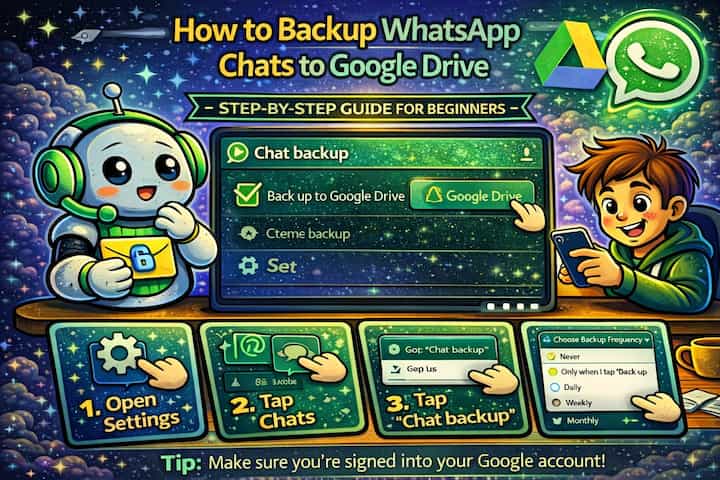
Go to WhatsApp -> Settings -> Chats -> Chat Backup, connect your Google account, set the backup frequency to Daily, and tap Back Up Now to create your first backup immediately. From that point forward, WhatsApp will automatically back up your chats to Google Drive every day - as long as your phone is charging and connected to Wi-Fi at the scheduled time.
What This Guide Actually Helps You Do
This guide is designed for readers who want to recover or move important conversations only when the app gives you a reliable path to do it. It adds value beyond the basic menu path by explaining whether the backup or transfer method matches your phone number, cloud account, device type, and timing. That matters because people often reinstall the app or reset a phone before checking whether the backup is recent enough and linked to the right account.
The practical goal is to leave you with a result you can verify, not just a menu path you followed. It also keeps the limits visible: this guide does not pretend to offer recovering encrypted messages that were never backed up or accessing someone else's private data. It shows the reliable path, the trade-offs, and the checks that help you avoid repeating the same mistake.
Real Situations Where This Becomes Critical
WhatsApp backup is one of those settings that feels optional right up until the moment it becomes essential.
You're switching to a new phone and want your entire chat history to transfer over. This is the most common scenario - and the one where most people discover for the first time that their backup was never set up, or that the last backup was months ago. When you install WhatsApp on a new device and log in with the same number and Google account, the app can restore everything exactly as it was. Without a backup, you start fresh with no history, no media, no saved conversations.
Your phone is lost, stolen, or damaged beyond use. Unlike a planned phone upgrade where you have time to manually trigger a backup, an unexpected loss gives you no warning. If your last automatic backup ran this morning, you lose at most a day of messages. If your backup was set to monthly - or never configured - you could lose months or years of conversations, photos, voice messages, and documents that were shared in those chats.
You're doing a factory reset to fix a software issue and didn't realize it would wipe WhatsApp. Factory resets are often done quickly, in the middle of troubleshooting, without a careful pre-reset checklist. WhatsApp is an app like any other - it gets wiped with everything else. People who've been through this once almost always set up automatic daily backups immediately afterward. It's a lesson that tends to stick.
Before You Start: One Thing to Know
WhatsApp backups on Android are stored in Google Drive under a special category that doesn't count against your Google storage quota - for now. This has historically been the case, but Google has changed storage policies before and may do so again. More importantly, the backup is tied to your specific Google account and phone number. If you try to restore to a device using a different Google account, or with a different phone number, the backup won't be accessible. Always back up to the Google account you actually use.
Also: your backup is only as current as the last time it ran. Checking the "Last Backup" date in your settings is the only reliable way to know whether your backup is actually keeping pace with your conversations.
How to Set Up WhatsApp Backup to Google Drive - Step by Step
Step 1 - Open WhatsApp Settings
Open WhatsApp and tap the three dots in the top-right corner, then select Settings.
Step 2 - Go to Chats
Tap Chats to access all conversation-related settings.
Step 3 - Tap Chat Backup
Tap Chat Backup to open the backup configuration screen.
Step 4 - Connect Your Google Account
If no Google account is linked yet, tap Add Account and select the Google account you want to use for backup storage. Choose carefully - this is the account you'll need to have active on any future device to restore from this backup.
Step 5 - Set Your Backup Frequency
Tap Back Up to Google Drive and choose how often WhatsApp should automatically back up. The options are Daily, Weekly, Monthly, or Only when I tap Back Up Now. For most people, Daily is the right choice - it means you'll never lose more than 24 hours of messages in a worst-case scenario.
Step 6 - Decide Whether to Include Videos
Tap the Include Videos toggle to choose whether video files are included in your backup. Videos can significantly increase backup size - a toggle to include them is worth enabling if you have sufficient Google Drive storage, but if you're running low on space, excluding them keeps the backup lean while still preserving all text conversations and photos.
Step 7 - Tap Back Up Now
Tap Back Up Now to trigger an immediate backup rather than waiting for the next scheduled one. This creates your baseline backup right away.
Step 8 - Wait for the Backup to Complete
The backup progress will display on screen. The time it takes depends on the size of your chat history and your connection speed. A first backup with years of messages and media can take several minutes on a good Wi-Fi connection.
Once complete, the screen will show the date and time of the successful backup. This is the timestamp you'll want to see updating regularly going forward.
What Changes After You Set This Up
Once the backup is configured and the first backup completes, WhatsApp runs the process automatically in the background at your chosen frequency - typically while your phone is charging and connected to Wi-Fi overnight. You don't need to open the app or do anything manually. The "Last Backup" timestamp in your Chat Backup settings updates each time a successful backup completes, giving you a clear way to verify it's working.
On the Google Drive side, you won't see the WhatsApp backup listed as a normal folder in your Drive. WhatsApp backups are stored in a separate, system-level section of Google Drive. You can view them by going to drive.google.com, clicking the gear icon, selecting Settings, then navigating to Manage Apps - WhatsApp will be listed there with the size of its stored backup.
If you ever need to restore - on a new phone or after reinstalling - WhatsApp detects the backup automatically when you verify your phone number. You'll be prompted to restore before the app finishes setup, and the restoration process pulls everything back: messages, media, voice notes, and chat history.
Advanced Tips: Making Your Backup More Reliable
The basic setup works well for most people, but these four habits significantly improve how dependable your backup actually is.
Enable end-to-end encrypted backup for the highest level of security. WhatsApp offers an optional end-to-end encrypted backup that protects your Google Drive backup with a password or a 64-digit encryption key. Standard backups on Google Drive can be accessed by Google - encrypted backups can only be decrypted with your password. To enable it, go to Chat Backup -> End-to-End Encrypted Backup and follow the setup. Store your password somewhere safe - if you lose it, the backup cannot be restored.
Verify your backup is actually running by checking the "Last Backup" date weekly. This sounds obvious, but a surprising number of people set up daily backup, assume it's running, and only discover months later that it stopped due to a storage issue or an account problem. Take ten seconds once a week to open Chat Backup settings and confirm the timestamp is recent. If it hasn't updated, investigate before you need the backup rather than after.
Make sure your Google Drive has enough free space before each backup. If your Google account storage is full, the backup will fail silently - there's no alert in WhatsApp, just a failed backup that you might not notice until you need to restore. Check your Google account storage at drive.google.com/settings and clear old backups, photos, or Gmail attachments if you're running low. 15GB of free Google storage goes quickly if multiple Google services are writing to the same account.
Back up manually before any major phone action - factory reset, OS update, or phone transfer. Automatic daily backups are reliable under normal conditions, but before you do something that could affect your phone or WhatsApp installation, trigger a manual backup first. It takes thirty seconds and guarantees you have a backup from that exact moment, not from whenever the last automatic backup ran. Tap Back Up Now and wait for the confirmation before proceeding with whatever you were about to do.
What WhatsApp Backup Doesn't Cover
WhatsApp backup on Google Drive is comprehensive but not unlimited. The backup captures your messages, media, and voice notes - but it only reflects the state of your data at the moment the backup ran. Messages received between your last backup and the moment you lose your phone are gone if you haven't backed up since. Daily backup minimizes this window, but it doesn't close it entirely.
The backup is also tied to your phone number and Google account together. If you change your phone number without transferring your WhatsApp account first, a backup made under the old number won't be detected when you set up with the new one. This trips people up during phone upgrades where a carrier change or number port is involved at the same time.
Media files that were deleted from WhatsApp before the backup ran won't appear in the backup - the backup captures current state, not history. And if you have end-to-end encrypted backup enabled and lose your password, that backup is permanently inaccessible. WhatsApp cannot recover it for you, and neither can Google. The encryption is genuine.
Finally, WhatsApp backups don't transfer seamlessly between Android and iPhone. If you switch platforms, you'll need to use WhatsApp's dedicated Move to iOS or Move to Android feature during device setup, which works differently from the standard Google Drive restore process. A Google Drive backup made on Android cannot be restored to an iPhone.
Frequently Asked Questions
Why does my WhatsApp backup keep failing, and how do I fix it? The most common causes are insufficient Google Drive storage, an unstable internet connection during the backup window, or a mismatch between the Google account linked in WhatsApp and the primary account on your device. Start by checking your Google Drive storage at drive.google.com/settings. If storage isn't the issue, go to WhatsApp's Chat Backup screen and tap Back Up Now while connected to Wi-Fi - if it fails with an error message, that message usually identifies the specific problem. Relinking your Google account by tapping the account field and reselecting it sometimes resolves authentication issues.
Does WhatsApp backup include messages from all my chats, or only some of them? By default, backup includes all chats - individual conversations and groups. The exceptions are chats that were archived and then had their messages manually deleted before the backup ran, or chats in which you enabled disappearing messages and the timers expired before backup. Everything that was present in your chat list at the time of the backup is included. There's no selective backup by individual contact; it's all-or-nothing.
If I restore from a backup, will the other people in my chats see that I restored? No. Restoring from a backup is entirely local to your device. The other participants in your conversations have no visibility into your backup status or restoration activity. Your messages reappear on your side exactly as they were - their side of the conversation was never affected by your phone's storage state in the first place.
Can I access my WhatsApp backup from Google Drive on a computer? Not in a usable form. WhatsApp backups stored in Google Drive are in a proprietary format that can only be read and restored by the WhatsApp app itself during the setup process on an Android device. You can see the backup listed in Google Drive's app management section and check its size, but you can't open, read, or export your messages from it directly through a browser or Google Drive desktop.
What happens to my Google Drive backup if I switch from WhatsApp to a different messaging app? The backup stays in your Google Drive until you either delete it manually or it expires. WhatsApp backups that are not refreshed with a new backup for more than a year are automatically deleted by Google. If you stop using WhatsApp but want to keep the backup as an archive, be aware of this expiration policy. You can extend the retention by occasionally running a manual backup from the WhatsApp app, even if you're not actively using the app for communication.
What To Verify Before You Finish
A good finish looks like this: you know exactly which backup or transfer source will be used and what newer messages could be missing afterward. Before moving on, do a small real-world test: check the backup date, account name, phone number, available storage, and internet connection before uninstalling or moving anything.
If the restore prompt does not appear or the transferred history is incomplete, the most likely explanation is that the phone number, Google account, Apple ID, device pair, storage permission, or backup location does not match the original setup. In that case, use the troubleshooting or limitation section above first, because repeating the same taps usually hides the real cause.
Related Guides
Read next: Restore WhatsApp backup on a new phone | Send HD photos on WhatsApp | Transfer WhatsApp chats from Android to iPhone
Final Thoughts
Setting up WhatsApp backup takes three minutes. Losing everything because you didn't takes considerably longer to come to terms with. Daily backup to Google Drive, end-to-end encryption enabled, and a quick weekly check of the "Last Backup" timestamp - that's genuinely all it takes to make sure your conversations are protected. Do it once, confirm it's working, and then forget about it.