How to Create a WhatsApp Group (And Set It Up So It Actually Stays Useful)
Creating a WhatsApp group takes about thirty seconds. Keeping it useful takes a bit more thought. Most groups start with good intentions and gradually turn into something people mute and ignore - not because of anything technically wrong, but because of a few setup decisions made in the first two minutes. Getting those right from the start is what separates a group that people actually engage with from one that generates background noise.
Here's how to create one, and how to set it up so it doesn't become the latter.
Quick Answer (For Those in a Hurry)
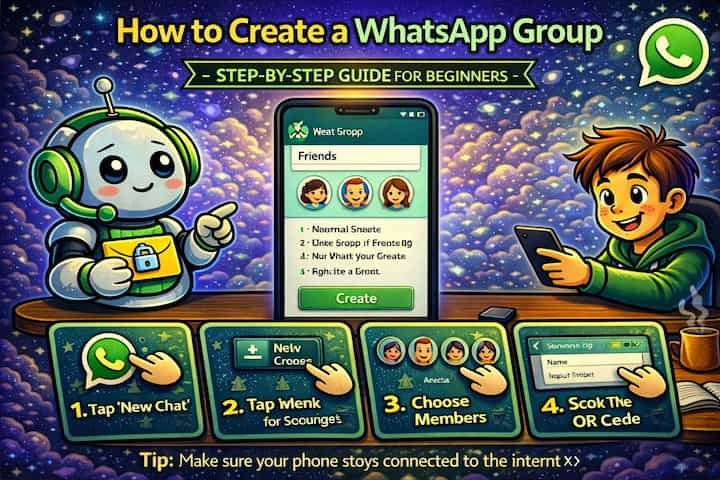
Tap the new chat icon in WhatsApp, select New Group, choose your participants, tap the arrow to continue, give the group a name and optionally a photo, then tap the checkmark to create it. You're automatically added as admin. The group is live and everyone you added receives a notification that they've been added.
What This Guide Actually Helps You Do
This guide is designed for readers who want to set up a channel, group, or community space that works for real people after the first day. It adds value beyond the basic menu path by explaining who should be able to join, who can post, what permissions members need, and how moderation will stay manageable. That matters because new communities often fail because the setup looks finished but roles, invites, rules, and posting permissions are unclear.
The practical goal is to leave you with a result you can verify, not just a menu path you followed. It also keeps the limits visible: this guide does not pretend to offer instant growth, automatic engagement, or a community that moderates itself without clear structure. It shows the reliable path, the trade-offs, and the checks that help you avoid repeating the same mistake.
Real Situations Where a Group Makes a Genuine Difference
WhatsApp groups solve a specific communication problem - and they solve it well when the group is built around something concrete.
You're organizing an event - a trip, a birthday, a reunion - and need everyone in the same conversation. Event planning over individual messages is a disaster. Someone doesn't get the update, someone shares information with person A but forgets person B, and nothing stays in sync. A group puts everyone in the same thread: one place for the date, the location, the changes, the confirmations. It takes thirty seconds to create and saves hours of repeated messages.
You manage a small team or project and need a fast channel for updates and coordination. Email is too slow for real-time decisions. A group WhatsApp for a project, a shift, or a team means questions get answered in minutes rather than hours, updates reach everyone instantly, and the conversation history is searchable. For small businesses especially - a cleaning crew, a catering team, a remote project group - WhatsApp groups are often the most practical coordination tool available.
You want to stay connected with a family or friend group that's spread across different cities or countries. Keeping up with people over distance is hard. A group makes it easy to share news, photos, and plans in a low-pressure way - people contribute when they have something to share, and the thread keeps the connection alive between the times you actually talk. A well-run group becomes a lightweight but genuine way of staying present in each other's lives.
Before You Create: One Thing to Know
Everyone you add to a group is notified immediately and can see the full member list from the moment they join - including phone numbers of other members if they're not in each other's contacts. This matters when mixing audiences. Adding your colleagues and your close friends to the same group means they can each see the other's numbers. For groups where members don't necessarily know each other, this is worth thinking about before you hit Create.
If privacy between members is a concern, WhatsApp's Communities feature or broadcast lists may be better alternatives than a standard group.
How to Create a WhatsApp Group - Step by Step
Step 1 - Open WhatsApp
Open WhatsApp on your phone and navigate to the main chat list screen.
Step 2 - Tap New Group
On Android, tap the chat icon in the top-right corner and select New Group. On iPhone, tap the compose icon in the top-right and select New Group. You can also access this through the three-dot menu depending on your version.
Step 3 - Select Participants
Your contact list will appear. Tap each person you want to add - a checkmark confirms their selection. You can search by name at the top if you have a large contact list. WhatsApp allows up to 1,024 participants in a single group. When you've selected everyone, tap the arrow to continue.
Step 4 - Name the Group
Type a name for your group. This is visible to all members and appears at the top of the chat. Keep it specific and descriptive - "Family" works for a group that will obviously be a family group, but "Barcelona Trip June" is more useful than "Trip" for an event group that might otherwise get confused with others.
Step 5 - Add a Group Photo (Optional)
Tap the camera icon to add a photo to your group. This makes the group instantly recognizable in the chat list. For professional groups, a logo or relevant image works well. For personal groups, any photo that represents the occasion or the people in it does the job.
Step 6 - Create the Group
Tap the checkmark or Create button to finalize. The group is created instantly.
Step 7 - Send the First Message
The group is live. All participants receive a notification that they've been added. Send an introductory message explaining the group's purpose - this sets the tone and helps members understand what it's for from the start.
What Changes After You Create the Group
The moment the group is created, every participant receives a system notification - "[Your name] added you to [Group Name]." This is automatic and can't be suppressed. From that point, the group functions as a shared conversation: everyone sees all messages, can reply, can react, and can see who's read what if read receipts are enabled.
As the creator, you start as the group admin. This gives you the ability to add and remove members, change the group name and photo, promote other members to admin, and control certain group settings like who can send messages and who can change group info. You can promote others to admin, which is useful for groups where you want shared management responsibility.
The group lives in everyone's chat list exactly like any other conversation. Members who were added can see the full message history from the moment they joined - not from before, but from their join point forward. If someone is added later, they won't see earlier messages unless you share them manually.
Advanced Tips: Running a Group That Stays Useful
Most groups degrade into noise over time because no one thinks about structure upfront. These four approaches prevent that.
Send a clear first message that explains the group's purpose and any ground rules. The first message sets expectations for everyone. Something as simple as "This group is for coordinating the trip - dates, logistics, costs. Side conversations in DM." immediately orients everyone and reduces off-topic noise. You don't need formal rules for casual groups, but even a one-line purpose statement makes a difference. People behave differently in a group when they know what it's for.
Use the Group Description to store permanent reference information. The Group Description (accessible through the group info screen) is one of WhatsApp's most underused features. It's pinned and visible to all members without scrolling through chat history. Use it for the group's purpose, important recurring information, links, or anything members might need to reference later - event details, shared passwords, meeting links. It's much more useful than burying that information in a message that disappears into the scroll.
Enable "Admins Only" messaging for announcement-style groups where you need control over what gets posted. If you're creating a group primarily to share updates - a class group, a neighborhood info group, a business announcement channel - enabling admin-only messaging prevents the group from turning into a freeform discussion. Go to Group Info -> Group Settings -> Send Messages -> Admins Only. Members can still reply through reactions or in direct messages, but the main thread stays clean.
Add a second admin immediately so the group doesn't become inaccessible if you're unreachable. If you're the only admin and you delete WhatsApp, lose your phone, or leave the group, no one else can manage it - remove members, change settings, or add new people. Promoting at least one other trusted member to admin when you create the group takes five seconds and prevents a common structural problem, especially in long-running groups.
What Groups Can't Do (And When to Use Something Else)
Groups have a genuine limitation that's easy to overlook: everyone can see everyone. There's no way to segment communication within a group or send a message that only some members see. If you need to reach all your contacts with a message but don't want them to know about each other or see each other's replies, a Broadcast List is the right tool - it sends individual messages to multiple people simultaneously, and each recipient sees only their own conversation with you.
For larger communities where you want sub-groups with a shared umbrella, WhatsApp's Communities feature lets you link multiple groups under one structure with an announcement channel. It's designed for organizations, schools, or large networks that would otherwise create dozens of separate groups with overlapping membership.
Groups also don't have any built-in moderation for spam beyond the admin-only message setting. If a member starts sending inappropriate content, the only tools available are removing them from the group and, if necessary, reporting and blocking them. There's no content filtering, no approval queue for messages, and no way to limit a specific member's posting frequency short of removing them entirely.
The 1,024 member cap is generous for most use cases, but it does exist. Very large communities with thousands of members aren't well served by a single WhatsApp group - Communities or a different platform is more appropriate at that scale.
Frequently Asked Questions
If I remove someone from a group, can they still see the message history from when they were a member? Yes. Removing someone from a group doesn't delete the conversation from their device - they keep a local copy of everything that was shared while they were a member. They lose the ability to see new messages posted after their removal, but the history up to that point remains accessible on their phone. If sensitive information was shared in the group, this is worth knowing before adding and removing members casually.
Can I add someone to a group if they have me blocked? No. If a contact has blocked you, you cannot add them to a group. WhatsApp prevents this because being added to a group by someone you've blocked would effectively bypass the block for that communication context. You'll see an error when trying to add them.
Does leaving a group delete it for everyone, or just remove me? It just removes you. The group continues for all remaining members exactly as before, with no disruption. The only exception is if you're the sole admin - in that case, WhatsApp randomly promotes another member to admin when you leave, to ensure the group isn't left without management. If you want to dissolve the group entirely, you need to remove all other members first and then delete the group.
Can people join a group without being added by an admin - for example, through a link? Yes, if an admin has created and shared a group invite link. This link allows anyone with it to join without being individually added. Admins can generate invite links through Group Info -> Invite to Group via Link. The link can also be revoked if it gets shared too broadly. This is useful for events or communities where you don't have everyone's number but want open access for a defined audience.
If I archive a group, does it mute notifications and hide it from my chat list permanently? Archiving moves the group out of your main chat list and into the archived section, and it silences notifications while archived - but only if you have the "Keep Chats Archived" setting enabled. Without that setting, a new message in the archived group will bring it back to the top of your main chat list. To keep a group permanently quiet and out of the main view, archive it AND mute it with "Always" selected.
What To Verify Before You Finish
A good finish looks like this: a new member can join, understand where to go, and interact only in the places you intended. Before moving on, do a small real-world test: enter the space from a normal member account or ask a trusted user to test joining, posting, reading, and leaving.
If members cannot access the right place, post in the wrong place, or get confused by the layout, the most likely explanation is that permissions, invite settings, channel visibility, role order, or the channel structure need to be adjusted before promotion. In that case, use the troubleshooting or limitation section above first, because repeating the same taps usually hides the real cause.
Related Guides
Read next: Create WhatsApp broadcast lists | Change WhatsApp notification sounds | Use WhatsApp on two phones
Final Thoughts
The thirty seconds it takes to create a group is the easy part. The groups that stay useful are the ones where someone thought for an extra two minutes about the name, sent a clear first message, and used the description field. That's genuinely all it takes to separate a group people check from one they mute. Start it right and it runs itself.