How to Backup Telegram Chats: Complete Step-by-Step Guide
Telegram is known for its cloud-based messaging system, but many users are surprised to learn that creating a personal backup is still extremely useful. Whether you want to archive important conversations, save media locally, or keep records for professional use, backing up your Telegram chats gives you more control over your data.
In this guide, you'll learn exactly how Telegram backups work, how to export your chats safely, what limitations exist, and the smartest ways to keep your conversations protected long term.
Quick Answer (For Those in a Hurry)
Telegram automatically syncs most chats through the cloud, but you can create a manual backup using Telegram Desktop. The export feature lets you save messages, photos, videos, files, and other account data locally on your computer for offline access and long-term storage.
What This Guide Actually Helps You Do
This guide is designed for readers who want to recover or move important conversations only when the app gives you a reliable path to do it. It adds value beyond the basic menu path by explaining whether the backup or transfer method matches your phone number, cloud account, device type, and timing. That matters because people often reinstall the app or reset a phone before checking whether the backup is recent enough and linked to the right account.
The practical goal is to leave you with a result you can verify, not just a menu path you followed. It also keeps the limits visible: this guide does not pretend to offer recovering encrypted messages that were never backed up or accessing someone else's private data. It shows the reliable path, the trade-offs, and the checks that help you avoid repeating the same mistake.
Real Situations Where Telegram Backups Matter
You need to keep important work conversations. Freelancers, remote workers, and business owners often use Telegram for client communication and file sharing. A local backup helps preserve important information even if chats are deleted later.
You're planning to delete or reset your account. Many users realize too late that deleting a Telegram account permanently removes access to certain conversations and media. Exporting your data beforehand prevents accidental loss.
You want offline access to photos and files. Large media collections can sometimes become difficult to re-download, especially on slow connections or after years of account usage. A local backup keeps everything immediately accessible.
One thing to know: Telegram exports are designed for viewing and archiving. Unlike WhatsApp backups, they cannot be directly restored into the Telegram app later.
How Telegram Backup Actually Works
Telegram handles data differently from most messaging platforms.
Regular chats, groups, channels, and media are primarily stored in Telegram's cloud infrastructure. This allows messages to sync instantly across phones, tablets, and computers without requiring traditional device backups.
However, Telegram also provides an export tool through Telegram Desktop that allows users to create their own local copies of conversations and files.
These exports can include:
- Private chats
- Group conversations
- Channel history
- Photos and videos
- Documents and archives
- Voice messages
- Account information
The exported files remain stored on your computer and can be accessed even without an internet connection.
Important Difference Between Cloud Chats and Secret Chats
Before creating a backup, it's important to understand Telegram's two chat systems.
Standard chats are cloud-based and synchronized automatically. Secret chats are completely different. They are device-specific, end-to-end encrypted, and intentionally excluded from Telegram's export system.
This means secret chats cannot be backed up through the official export tool.
If you want to preserve content from secret chats, you must save it manually.
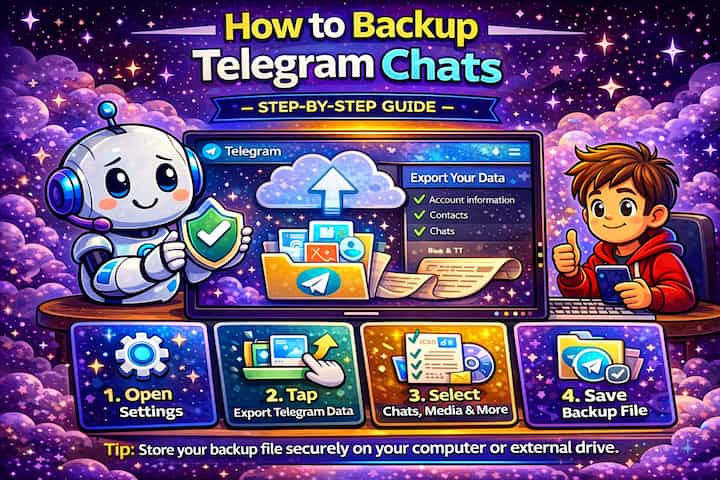
Step-by-Step: How to Backup Telegram Chats
Step 1: Install Telegram Desktop
The export feature is only available through Telegram Desktop.
If you normally use Telegram on mobile, you'll need to install the desktop version on Windows, macOS, or Linux first.
Step 2: Open Telegram Settings
Launch Telegram Desktop and open the settings menu.
You can access it through the menu icon located in the upper-left corner.
Step 3: Navigate to Advanced Settings
Scroll down until you reach the advanced settings section.

Telegram hides export tools here rather than inside standard chat settings.
Step 4: Click "Export Telegram Data"
Select the export option.
This opens Telegram's full export configuration panel.
Step 5: Choose What You Want to Export
Telegram allows very detailed customization.
You can choose specific data categories including:
- Personal chats
- Groups
- Channels
- Photos
- Videos
- GIFs
- Files
- Stickers
- Voice messages
Selecting only the content you truly need can dramatically reduce export time and storage usage.
Step 6: Customize Export Settings
Telegram also lets you configure export behavior.
You can choose:
- HTML or JSON format
- Media size limits
- Download quality
- Path location
- File organization settings
HTML is generally best for most users because it allows conversations to be opened directly inside a web browser.
JSON is more useful for developers or advanced archiving purposes.
Step 7: Start the Export Process
Once your settings are configured, begin the export.
Large exports containing years of media may take considerable time depending on:
- Internet speed
- Disk performance
- Number of files
- Export size limits
Telegram may temporarily appear frozen during extremely large exports. This is normal in many cases.
Step 8: Access Your Backup Files
After completion, Telegram saves the export locally on your computer.
You can browse conversations, open media, and archive files however you want.
Most users choose to store backups on:
- External drives
- NAS systems
- Secondary SSDs
- Secure cloud storage
Keeping multiple copies is highly recommended for important archives.
Can You Restore Telegram Backups?
This is one of the biggest misunderstandings surrounding Telegram exports.
Telegram backups cannot be re-imported into the app.
The export system exists for viewing, archiving, and preserving data rather than restoring accounts.
If you reinstall Telegram later, your regular cloud chats will automatically reappear after logging in again. Exported backups remain separate local copies.
Why Some Files May Be Missing
Users sometimes notice that exported backups are incomplete.
This can happen for several reasons:
- Media size limits were enabled
- Certain chats were excluded
- Files were deleted before export
- Secret chats are unsupported
- The export process was interrupted
Large exports can also occasionally fail if the computer runs out of storage space during the process.
Best Practices for Long-Term Telegram Backups
Creating a backup once is helpful, but maintaining organized archives is even more important over time.
If you regularly use Telegram for work, projects, or long-term communication, consider creating backups every few months instead of waiting years between exports.
Using descriptive folder names and storing backups by date also makes future navigation significantly easier.
For sensitive conversations, encrypted storage solutions provide additional security against unauthorized access.
Many advanced users also keep two backup copies:
- One local offline copy
- One encrypted cloud copy
This approach protects against both hardware failure and accidental deletion.
Common Mistakes to Avoid
One of the most common mistakes is assuming Telegram exports work like smartphone backups. Many users expect they can restore exported files directly into Telegram later, which is not possible.
Another major mistake is forgetting about secret chats. Because they are device-specific, losing the original device may permanently erase those conversations.
Some users also export everything at maximum quality unnecessarily, creating extremely large backups that become difficult to store or manage later.
Being selective with exported media can make backups much more practical.
Advanced Tips to Optimize Telegram Backups
Export specific chats instead of your entire account. If you only need certain conversations, limiting the export scope makes the process dramatically faster and easier to manage.
Use HTML format for readability. HTML exports are far easier to browse compared to raw JSON files and work well for long-term archives.
Store backups outside your main system drive. Large Telegram exports can consume significant storage space. External SSDs or NAS storage are often safer options.
Create backups before major account changes. Before deleting chats, changing devices, or resetting accounts, creating a backup provides an additional safety layer.
Security Considerations
Telegram backups may contain highly sensitive personal information including messages, private media, documents, and account details.
Because exported files are stored locally, protecting them becomes your responsibility.
Avoid storing backups on unsecured public computers or shared drives. Using encrypted storage or password-protected archives adds an important layer of protection for long-term security.
Frequently Asked Questions
Does Telegram automatically backup chats?
Telegram automatically synchronizes most standard chats through the cloud, but local exports must be created manually through Telegram Desktop.
Can Telegram exports include deleted messages?
No. Messages deleted before the export process usually cannot be recovered through Telegram's export tool.
Why are secret chats excluded from backups?
Secret chats use device-specific end-to-end encryption and are intentionally designed to avoid cloud storage or centralized exports.
What is the best export format for Telegram backups?
For most users, HTML is the best option because conversations are easier to browse and read offline.
Can large Telegram exports fail?
Yes. Extremely large exports may slow down, freeze temporarily, or fail if your system lacks enough storage space or memory resources.
What To Verify Before You Finish
A good finish looks like this: you know exactly which backup or transfer source will be used and what newer messages could be missing afterward. Before moving on, do a small real-world test: check the backup date, account name, phone number, available storage, and internet connection before uninstalling or moving anything.
If the restore prompt does not appear or the transferred history is incomplete, the most likely explanation is that the phone number, Google account, Apple ID, device pair, storage permission, or backup location does not match the original setup. In that case, use the troubleshooting or limitation section above first, because repeating the same taps usually hides the real cause.
Related Guides
Read next: Mute Telegram notifications | Delete Telegram account | Use Telegram voice chat
Final Thoughts
Telegram already offers one of the most flexible cloud messaging systems available today, but relying entirely on cloud synchronization is not always enough for long-term protection.
Creating your own backups gives you full control over important conversations, files, and personal archives. Whether you use Telegram casually or professionally, having secure copies of valuable data can save you from major headaches later.