How to Lock WhatsApp with Fingerprint (And Why It's Not Enough on Its Own)
Most people assume that locking their phone is enough to keep their messages private. It's not. If someone borrows your unlocked phone - a friend, a coworker, a family member - WhatsApp is right there, one tap away. Every conversation, every photo, every document you've ever received is fully accessible in seconds.
WhatsApp's built-in fingerprint lock fixes that. It's fast, it's free, and it takes about two minutes to set up. Here's exactly how to do it, and what you should combine it with for real protection.
Quick Answer (For Those in a Hurry)
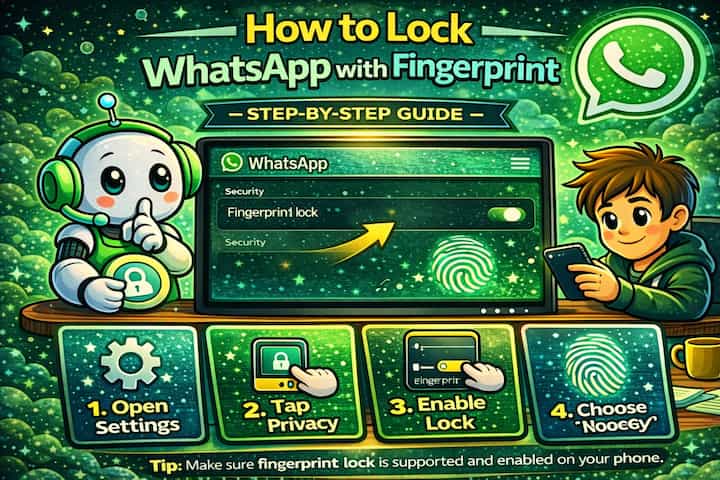
Go to WhatsApp -> Settings -> Privacy -> Fingerprint Lock, toggle it on, scan your fingerprint when prompted, then choose how quickly the app locks after you leave it. That's all it takes - WhatsApp will require your fingerprint every time it's reopened.
What This Guide Actually Helps You Do
This guide is designed for readers who want to change privacy or safety settings without misunderstanding what other people can still see. It adds value beyond the basic menu path by explaining which signals are hidden, which ones remain visible, and whether the change affects one conversation, one contact, or the whole account. That matters because privacy features are easy to overestimate, especially when screenshots, notifications, profile visibility, or group behavior still reveal context.
The practical goal is to leave you with a result you can verify, not just a menu path you followed. It also keeps the limits visible: this guide does not pretend to offer total invisibility, message secrecy against screenshots, or a way to bypass another person's privacy settings. It shows the reliable path, the trade-offs, and the checks that help you avoid repeating the same mistake.
Real Situations Where This Actually Matters
Fingerprint lock isn't just a setting for the paranoid - there are everyday scenarios where it makes a genuine difference.
You hand your phone to someone and forget WhatsApp is open. A friend wants to show you something on YouTube, a kid grabs your phone to take a photo, a colleague borrows it to make a call. None of them were trying to snoop - but WhatsApp was right there, unlocked, with everything visible. Fingerprint lock makes that a non-issue.
You work in an environment where confidential information comes through WhatsApp. Plenty of professionals receive client details, internal documents, or sensitive discussions over WhatsApp rather than email. If your phone is left on a desk or handed to someone for a moment, that information is exposed. A biometric lock adds a barrier that doesn't rely on anyone respecting your privacy.
Your phone gets lost or stolen while unlocked. This is the scenario most people don't think about until it happens. A phone that's already past the lock screen gives anyone full access to WhatsApp. The fingerprint lock acts as a second gate - even if they're past the first one, they still can't read your messages.
Before You Enable It: One Thing to Know
WhatsApp's fingerprint lock only protects access to the app - it does not hide your message previews in notifications. Someone can still read incoming messages on your lock screen or notification shade without ever opening WhatsApp, unless you specifically disable message previews.
This is the part most people miss. Enabling fingerprint lock and leaving notifications fully visible is only half the job. The steps below cover both.
How to Lock WhatsApp with Fingerprint - Step by Step
Step 1 - Open WhatsApp Settings
Open WhatsApp and tap the three dots in the top-right corner on Android, then tap Settings.
Step 2 - Go to Privacy
Tap Privacy to access all visibility and security options.
Step 3 - Enable Fingerprint Lock
Scroll down to Fingerprint Lock and toggle it on. WhatsApp will immediately ask you to scan your fingerprint to confirm.
Step 4 - Choose Your Lock Timing
Select how quickly WhatsApp locks after you leave the app. The options are typically Immediately, After 1 minute, or After 30 minutes.
Tip: "Immediately" is the most secure option. If you find it too disruptive, "After 1 minute" is a reasonable balance - it won't lock mid-conversation, but it will lock quickly if you put your phone down.
Step 5 - Disable Notification Previews
Still in Privacy settings, tap Notifications and turn off message previews. This prevents message content from appearing on your lock screen while WhatsApp is locked.
That's it. WhatsApp will now require your fingerprint every time it's reopened after locking.
What Changes After You Enable This
Once fingerprint lock is active, opening WhatsApp after it locks will immediately prompt for biometric authentication. The app's content - your chats, media, voice notes, everything - stays completely hidden until your fingerprint is verified. You can still receive calls and answer them without unlocking, and notifications will continue to arrive (without content previews, if you followed Step 5).
The lock applies only to the WhatsApp app itself. It doesn't affect anything else on your phone, and it doesn't interfere with WhatsApp's end-to-end encryption, which protects your messages in transit regardless of this setting.
Advanced Tips: Build a Stronger Security Setup
The fingerprint lock is a great starting point, but it works much better as part of a layered approach.
Enable two-step verification. This is separate from fingerprint lock and protects your WhatsApp account itself - not just the app on your phone. If someone tries to reinstall WhatsApp with your number on another device, they'll hit a six-digit PIN that only you know. Go to Settings -> Account -> Two-Step Verification to set it up. It takes two minutes and significantly raises the bar for anyone trying to take over your account.
Control what appears in notifications. Even with fingerprint lock enabled, incoming messages can display their full content in notification banners. Go to Settings -> Notifications and disable "Show Preview" - or set it to show the contact name only, without the message text. This is especially important if you use WhatsApp on a shared or work device.
Use "Screen Lock" on iPhone instead. iPhone doesn't have a dedicated fingerprint lock option in the same place - it uses Face ID or Touch ID through the general Screen Lock setting in WhatsApp's Privacy section. The behavior is identical: the app requires biometric authentication after locking. The path is Settings -> Privacy -> Screen Lock.
Combine with a strong phone PIN. Fingerprint lock on WhatsApp is a second gate, but the first gate - your phone's lock screen - still matters. A weak PIN (0000, 1234, your birth year) undermines everything. If someone can bypass your phone lock, they can also bypass WhatsApp's lock by using your finger while you're asleep. A longer, less predictable PIN or a strong password is worth the extra second to type.
Why Fingerprint Lock Isn't a Complete Solution
It's worth being honest about what this feature does and doesn't do. The lock protects access to the app on your device - it does nothing to protect messages that have already been forwarded, screenshotted, or shared. It also doesn't prevent someone from reading messages on a device where they've already authenticated, such as WhatsApp Web on a computer you forgot to log out of.
And there's a physical reality worth acknowledging: if someone has access to your hand - while you're asleep, for example - your fingerprint is accessible to them. Biometric locks are effective against casual access and opportunistic snooping, but they're not designed to stop a determined, physically present attacker.
Used with realistic expectations, fingerprint lock is genuinely useful. Used as the only line of defense, it leaves gaps.
Frequently Asked Questions
Does fingerprint lock also protect WhatsApp Web and linked devices? No - fingerprint lock only applies to the app on your phone. If you have WhatsApp Web open on a laptop or a linked tablet, those sessions remain accessible regardless of your phone's lock settings. To fully protect your account across all surfaces, go to Settings -> Linked Devices and log out of any sessions you don't recognize or no longer use.
What happens if my fingerprint doesn't work - am I locked out permanently? No. If your fingerprint fails repeatedly, WhatsApp falls back to your phone's PIN or password as an alternative authentication method. You won't be permanently locked out, but you will need access to your phone's screen lock credentials.
Will enabling fingerprint lock affect WhatsApp backup or restore? No - fingerprint lock has no effect on your backup settings or restoration process. Backups continue to run on their normal schedule, and restoring from a backup works the same way regardless of whether the lock is enabled.
Can someone bypass fingerprint lock using WhatsApp notifications? If you've disabled message previews in notifications, no - they'll only see that a notification arrived, not what it says. If previews are still enabled, they can read incoming messages in the notification shade without unlocking the app. This is why Step 5 (disabling previews) matters just as much as enabling the lock itself.
Does this feature work the same on all Android phones? The core behavior is the same across Android, but the exact wording and location of the setting can vary slightly between manufacturers. Some Samsung or Xiaomi devices, for example, may show slightly different menu labels. If you can't find "Fingerprint Lock" in Privacy, search for "biometric" or "screen lock" in the WhatsApp settings search bar.
What To Verify Before You Finish
A good finish looks like this: the privacy behavior is clear in a real conversation and you know what the other person will still be able to notice. Before moving on, do a small real-world test: try the setting with a trusted contact or secondary device, then compare the visible profile, notification, or message state from both sides.
If someone can still see something you expected to hide, the most likely explanation is that the feature protects only a specific layer of privacy and does not control screenshots, saved media, group history, forwarded content, or old notifications. In that case, use the troubleshooting or limitation section above first, because repeating the same taps usually hides the real cause.
Related Guides
Read next: Hide your online status on WhatsApp | Block someone on WhatsApp | Recover deleted messages on WhatsApp
Final Thoughts
Fingerprint lock is one of those settings that takes two minutes to enable and then just quietly does its job every day. Most people don't think about it until they wish they'd turned it on sooner. If your WhatsApp contains anything you'd rather keep private - and almost everyone's does - it's worth enabling today.