How to Change WhatsApp Notification Sounds (And Build a Setup That Actually Works)
The default WhatsApp notification sounds the same for every message from every person in every chat. Your boss, your family group with 47 members, your best friend, a spam number you haven't blocked yet - all identical. After a while, the brain learns to ignore it entirely, or worse, you check your phone every single time regardless of who it might be. Both outcomes are avoidable.
WhatsApp lets you customize notification sounds globally and for individual contacts. Here's how to set it up properly, and how to build a system that actually reduces noise rather than just rearranging it.
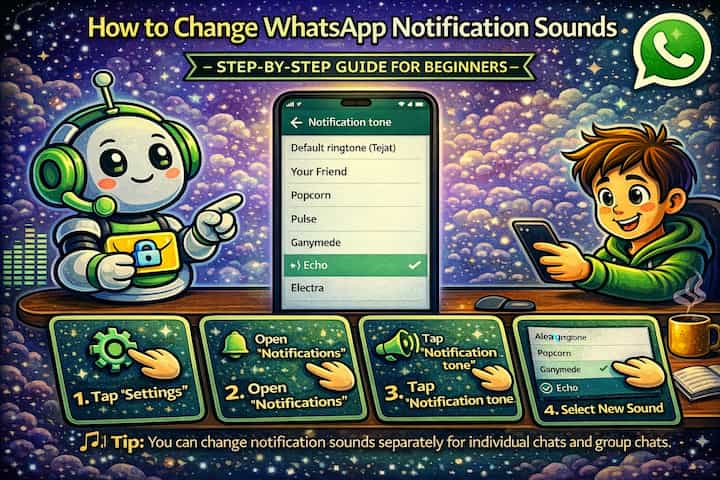
Quick Answer (For Those in a Hurry)
To change your global WhatsApp notification sound, go to WhatsApp -> Settings -> Notifications -> Message Notifications -> Sound and choose a new tone. To set a custom sound for a specific contact, open their chat, tap their name at the top, select Custom Notifications, enable it, and choose a sound just for that conversation. Changes take effect immediately - no restart needed.
What This Guide Actually Helps You Do
This guide is designed for readers who want to control message timing, visibility, editing, or notifications with fewer surprises. It adds value beyond the basic menu path by explaining whether the feature changes the message itself, the delivery timing, the visible history, or only your local notification experience. That matters because users often assume message tools work the same in private chats, groups, linked devices, and desktop apps, but the details can differ.
The practical goal is to leave you with a result you can verify, not just a menu path you followed. It also keeps the limits visible: this guide does not pretend to offer silent changes that nobody can notice, guaranteed delivery in every case, or automation that ignores app limits. It shows the reliable path, the trade-offs, and the checks that help you avoid repeating the same mistake.
Real Situations Where This Actually Changes Your Day
Custom notification sounds are one of those settings that sound minor until you've actually used them for a week.
You're in back-to-back meetings and your phone is face-down on the table. Every WhatsApp notification makes the same sound, so you ignore them all - including the one from your manager asking where the document is. If your manager had a distinct sound, you'd pick up the phone for that specific alert without reacting to every group chat ping. Custom sounds let you triage without looking.
You're part of multiple active group chats that generate constant noise. Work groups, family groups, friend groups - they all fire throughout the day. Setting a softer or no-sound notification for those groups while keeping a clear sound for direct messages means you stay informed about personal conversations without being pummeled by group activity you'll catch up on later anyway.
You want to know immediately when a specific person messages you - a partner, a child, an important client - without checking your phone constantly. Assigning a distinctive sound to that one contact means you'll know the moment they reach out, even with your phone in your pocket or across the room. It's a small change that removes a genuine source of ambient anxiety.
Before You Customize: One Thing to Know
WhatsApp has two separate layers of notification settings: the in-app settings and your phone's system settings. If you change a sound in WhatsApp but your phone's notification volume is off or Do Not Disturb is active, you won't hear it. And on some Android devices, WhatsApp's in-app sound setting can be overridden by the system-level notification channel settings. If a change doesn't seem to take effect, the fix is usually in your phone's system settings rather than in WhatsApp itself.
Both layers need to cooperate for your customizations to actually work as expected.
How to Change WhatsApp Notification Sounds - Step by Step
Method 1 - Change the Global Notification Sound (All Chats)
This sets the default sound for all incoming WhatsApp messages.
Step 1 - Open WhatsApp Settings. Tap the three dots in the top-right corner and select Settings.
Step 2 - Go to Notifications. Tap Notifications to access all alert settings.
Step 3 - Open Message Notifications. Under the Messages section, tap Message Notifications to expand the options.
Step 4 - Tap Sound and Choose a New Tone. Tap Sound and select from the available notification tones on your device. You'll hear a preview when you tap each option.
Step 5 - Confirm Your Selection. Tap OK or Save to apply the new sound. It takes effect immediately for all new messages.
Method 2 - Set a Custom Sound for a Specific Chat
This overrides the global setting for one individual conversation - the contact's messages will use this sound instead of the default.
Step 1 - Open the Chat. Navigate to the conversation you want to customize.
Step 2 - Tap the Contact or Group Name. At the top of the chat, tap the name to open the contact or group info screen.
Step 3 - Enable Custom Notifications. Scroll down until you see Custom Notifications and toggle it on. This unlocks sound and alert options specific to this chat.
Step 4 - Choose Your Custom Sound. Tap Notification Sound and select the tone you want for this specific contact or group. You can also set custom vibration patterns and choose whether to show or hide message previews in notifications here.
Step 5 - Test It. Ask someone to send you a message, or check that the settings registered correctly by looking at the chat's notification summary.
What Changes After You Set This Up
Once custom notifications are in place, the way WhatsApp feels throughout your day shifts noticeably. Instead of every alert demanding the same level of attention, sounds become informative on their own - you know before you look whether it's worth picking up your phone. The people and groups you've assigned distinctive sounds to stand out clearly, while the rest of the notification stream becomes easier to tune out until you're ready to check it.
Group chats in particular become much more manageable. A group that used to ping you twelve times during a meeting can be set to a nearly silent tone or vibration-only, while a direct message from someone important still gets a sound that breaks through. This isn't about ignoring messages - it's about controlling when and how much mental bandwidth they consume.
The settings persist across app updates and phone restarts. Custom sounds set at the chat level continue working even if you change the global notification sound later - the chat-specific setting takes priority.
Advanced Tips: Building a Smarter Notification System
Most people stop at changing the default sound. These four approaches build something genuinely more useful.
Create a simple tier system: distinct sound for VIPs, softer sound for regular contacts, minimal or silent for groups. Pick three sounds - one that's clearly recognizable for the contacts you always respond to immediately, a standard tone for everyone else, and either a very subtle sound or vibration-only for active group chats. That three-tier approach handles 95% of the daily notification load and eliminates the cognitive overhead of treating every ping equally.
Use vibration-only for group chats you check on your schedule rather than on theirs. Custom notifications let you set sound to "None" while keeping vibration on, or turn off both entirely while keeping the notification badge. For a family group or a work channel that you check a few times a day, removing the audio alert entirely means those messages accumulate quietly and you catch them in batch - much less disruptive than 30 individual pings.
On Android, use notification channels to customize at the system level for finer control. Go to your phone's Settings -> Apps -> WhatsApp -> Notifications and you'll see WhatsApp's notification channels broken out by type (messages, groups, calls, etc.). Some Android versions let you assign system-level sounds to these channels that can be more granular than what WhatsApp exposes in its own settings. This is especially useful if WhatsApp's in-app sound options feel limited.
Mute the global notification sound during focused hours using your phone's Do Not Disturb with exceptions. Rather than changing notification sounds for focus time, set up your phone's Do Not Disturb mode with a whitelist of contacts whose calls and messages can break through. This means your truly important contacts still reach you during deep work, while everyone else is silenced - without you having to manually change any WhatsApp settings. It's a system-level solution that pairs well with contact-specific custom sounds.
What Custom Notifications Can't Fix
Notification customization improves how you process incoming messages - it doesn't solve the underlying volume problem if you're in too many active groups or receiving too many messages. If you're getting 200 WhatsApp notifications a day, the most refined sound setup still means 200 interruptions. At some point, the right move is to mute or leave some groups, not to fine-tune which sound they use.
There's also a sync limitation worth knowing: custom notification settings are stored locally on your device. If you switch phones or reinstall WhatsApp, your global notification sound preference may carry over through backup, but individual chat-level custom notification settings often don't. You'll need to re-apply them on a new device. It's a minor inconvenience but worth knowing before a phone upgrade.
On iPhone, the sound customization options are slightly more limited than on Android because iOS controls notification sounds more tightly at the system level. WhatsApp on iPhone lets you choose between WhatsApp's built-in tones and your system ringtones, but the range is narrower than on Android, and custom audio files aren't supported the same way.
Frequently Asked Questions
I changed the notification sound in WhatsApp but I'm still hearing the old sound - why isn't it updating? This is almost always a conflict between WhatsApp's in-app setting and your phone's system-level notification channel. On Android, go to Settings -> Apps -> WhatsApp -> Notifications, find the "Messages" channel, and check whether a sound is set there that's overriding WhatsApp's internal setting. If the system-level channel has its own sound assigned, it takes precedence. Clear the channel's custom sound there and set it to "Default" to let WhatsApp's in-app setting control it instead.
Can I use a custom audio file - a song or a personal recording - as a WhatsApp notification sound? On Android, yes. Place the audio file in your phone's Notifications folder (or Ringtones folder), and it will appear as an option when you select a notification sound in WhatsApp or in the system notification settings. On iPhone, this isn't directly supported through WhatsApp - you'd need a third-party app to set a custom tone at the iOS system level, which is significantly more complex.
If I set a custom notification sound for a contact, does that also change the sound for messages they send in groups we share? No. Chat-specific custom notifications apply only to direct messages from that contact - their messages in shared group chats use the group's notification settings, not the individual contact's custom sound. To change how a group sounds, you need to set custom notifications on the group chat itself separately.
Does muting a chat also disable the custom notification sound I set for it? Yes. Muting a chat silences all notifications for that conversation regardless of any custom sound settings. The custom sound setting is preserved - if you unmute the chat later, your custom sound comes back. Muting simply overrides the notification entirely while it's active.
Do notification sound settings sync across linked devices when I use WhatsApp on two phones? No. Notification settings are local to each device. If you have WhatsApp linked on a second phone through the companion device feature, that phone has its own independent notification settings. Changes made on one device don't propagate to the other. You'll need to configure notification sounds separately on each linked device.
What To Verify Before You Finish
A good finish looks like this: the message or notification behaves as expected in the exact chat type where you plan to use it. Before moving on, do a small real-world test: run a harmless test message or notification change in the same type of chat before using it for something important.
If the timing, edit, pin, or notification does not behave as expected, the most likely explanation is that the chat type, device state, recipient settings, app version, or notification permissions are changing how the feature works. In that case, use the troubleshooting or limitation section above first, because repeating the same taps usually hides the real cause.
Related Guides
Read next: Use WhatsApp on two phones | Create a WhatsApp group step by step | Transfer WhatsApp chats from Android to iPhone
Final Thoughts
Notification sounds are one of those settings most people configure once at the start and never revisit - which is why most people are still living with the default. Five minutes to assign a distinct sound to your most important contacts and silence your loudest groups creates a noticeably quieter, more intentional relationship with your phone. It's a small thing that compounds across every day you use the app.