How to Delete Your Discord Account (And What You Should Do Before You Can't Undo It)
Deleting a Discord account is permanent in a way that most platform deletions aren't. There's a 14-day window to change your mind - after that, the account is gone for good, along with your username, your place in every server you were part of, and your ability to recover anything tied to that account. The process itself takes about five minutes, but there are two things you need to handle before Discord will let you proceed, and one decision you should make honestly before you start.
Quick Answer (For Those in a Hurry)
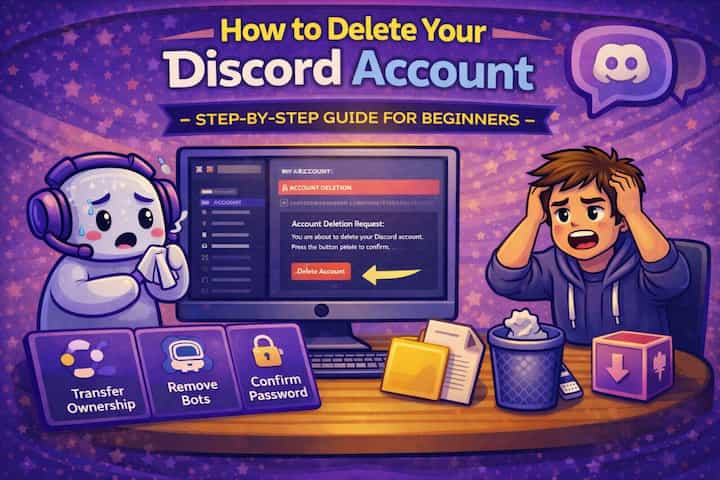
Before deleting, transfer ownership of any servers you own - Discord won't let you delete your account if you're the sole owner of a server. Then go to User Settings -> My Account -> Delete Account, enter your password (and 2FA code if enabled), and confirm. Your account enters a 14-day deletion pending period during which you can cancel by logging back in. After 14 days, the deletion is permanent.
What This Guide Actually Helps You Do
This guide is designed for readers who want to understand what account deletion removes before you make an irreversible decision. It adds value beyond the basic menu path by explaining which data disappears, which groups or servers are affected, which backups remain separate, and whether deactivation or privacy changes would be safer. That matters because people often delete too quickly and only later realize that usernames, history, ownership, contacts, or backups cannot be restored the way they expected.
The practical goal is to leave you with a result you can verify, not just a menu path you followed. It also keeps the limits visible: this guide does not pretend to offer recovering an account after the deletion window or removing copies that other users already saved. It shows the reliable path, the trade-offs, and the checks that help you avoid repeating the same mistake.
Real Situations Where Deleting Is the Right Call
Most people searching for this have a specific reason, and the reason matters for whether deletion is actually what they need.
You're leaving Discord for good and want your personal data removed from the platform. This is the clearest case for actual deletion. If you've decided Discord isn't a platform you want to be part of anymore - privacy concerns, the environment, just moving on - deletion is the right action. Your profile disappears, your username becomes unavailable to others, and your data is removed from Discord's active systems. It's a clean exit.
You want to start completely fresh with a new account, new identity, and no connection to your history. Some people want a new username, a new set of servers, a new social presence on Discord without the baggage of an old account. The right approach here is deleting the old account first, waiting for the 14-day period to pass, and then creating a new one. If you just want a new username without starting over, though, changing your username is faster and doesn't require deleting anything.
You're trying to leave a situation - a server, a social dynamic, people - and you want to remove yourself completely. Leaving servers one by one is reversible and visible. Deleting the account makes the exit final and removes your presence from every server simultaneously. If the situation involves harassment or unwanted contact, deletion combined with blocking through a new account (if you create one) is more effective than just leaving individual servers.
Before You Delete: One Thing to Know
If you own any Discord servers, you must transfer ownership before Discord will let you delete your account. This is a hard requirement - the Delete Account button will either be unavailable or will fail if you're the sole owner of one or more servers. The transfer takes about thirty seconds per server: go to your server -> Server Settings -> Members -> find a trusted person -> click the three dots next to their name -> Transfer Ownership. Do this for every server you own before beginning the deletion process.
If you want the servers to continue without you, transfer to someone who will manage them. If you want them to end when you leave, you'll need to delete all the channels and remove all members first - Discord doesn't delete a server when its owner deletes their account unless there are no other members.
How to Delete Your Discord Account - Step by Step
Step 1 - Transfer Ownership of Any Servers You Own
For each server where you're the owner, go to Server Settings -> Members. Find the member you want to pass ownership to, click the three dots next to their name, and select Transfer Ownership. Confirm the transfer. Repeat for every server you own. This step must be completed before you can proceed with deletion.
Step 2 - Open User Settings
Click the gear icon at the bottom-left of Discord next to your username to open User Settings.
Step 3 - Go to My Account
In the left menu of User Settings, click My Account. This is where your account information and the deletion option are located.
Step 4 - Click Delete Account
Scroll to the bottom of the My Account page. You'll find two options: Disable Account and Delete Account. Click Delete Account if you want permanent removal. Click Disable Account if you want to step away temporarily without losing your account - a disabled account can be reactivated by logging back in.
Step 5 - Enter Your Password
A confirmation dialog appears asking for your current Discord password. Type it in. This step verifies that you - and not someone who has momentary access to your screen - are initiating the deletion.
Step 6 - Complete 2FA Verification (If Enabled)
If you have two-factor authentication on your account, Discord will ask for your current authentication code from your authenticator app. Enter it. If you no longer have access to your authenticator app and can't retrieve your backup codes, you'll need to contact Discord support to resolve the 2FA issue before you can delete the account.
Step 7 - Confirm the Deletion
A final confirmation step asks you to confirm you understand the action is permanent. Read it and confirm. Your account is now scheduled for deletion.
Step 8 - The 14-Day Pending Period
Your account isn't deleted immediately. Discord holds it in a pending deletion state for 14 days, during which the account is inaccessible to others but still technically exists. If you change your mind within those 14 days, log back in with your credentials and cancel the deletion - your account will be restored exactly as it was. After 14 days, the deletion is permanent and cannot be reversed.
What Changes After You Delete Your Account
During the 14-day pending period, your profile disappears from servers and friend lists. Members who were in servers with you will see your messages attributed to a "Deleted User" with a generic default avatar - the content of your messages remains visible to others, but your identity is stripped from them. This is worth knowing if you sent messages you'd prefer not to have associated with the account even after deletion: Discord doesn't delete message content when you delete your account.
After the 14-day period passes and deletion is finalized, the email address you used is released and can be used for a new Discord account. Your username becomes available for others to claim. Your user ID - the permanent numeric identifier for your account - becomes inactive. Any bots or systems that tracked your account by ID will show it as an unknown or deleted user.
Friends you had are removed from your friends list on their end when the deletion finalizes. Servers you were in simply show the "Deleted User" entry where your name was, with no indication of which user that was beyond the message content.
Advanced Tips: Making the Right Choice Before You Delete
Consider disabling your account before deciding to delete it permanently. Disabling is Discord's version of a pause button. Your account becomes invisible - you don't appear in servers, messages show as from a deleted user while disabled, and you can't be contacted - but the account can be fully restored by logging back in. If you're leaving because of burnout, a difficult situation, or uncertainty, disabling gives you the option to return without starting over. Deletion doesn't offer that option after 14 days.
Back up any important conversations before deleting. Discord doesn't provide a data export tool comparable to what some platforms offer. If you have conversations, DMs, or information you want to keep, manually copy or screenshot what matters before you initiate deletion. After the account is deleted, that content is gone from your access permanently - even during the 14-day pending period, you may not have full access to your messages.
Remove yourself as an admin or moderator in servers you're staying in before deleting. When you delete your account, your admin and moderator roles are removed automatically - but this can create a gap in server management if no one else has equivalent permissions. If you're an admin in servers you care about and want to ensure continuity, either promote a replacement admin before leaving or coordinate the transition with the server owner.
If you plan to create a new account after deleting, wait for the 14-day period to fully complete. Creating a new account with the same email address isn't possible until the deletion is finalized. If you use a different email for the new account, you can create it sooner, but your old username won't be available until the deletion processes. If you want to reclaim your username specifically, you'll need to wait the full 14 days and then move quickly - usernames become available first-come-first-served once released.
What Deletion Can't Undo
The most significant thing deletion doesn't do is remove your message history from servers. Every message you sent remains in its original channel, visible to members, attributed to "Deleted User." If you posted something you regret and want removed, you need to delete those specific messages manually before deleting your account - the account deletion process doesn't extend to message content. In servers where you have permission to delete your own messages, you can do this from any channel. In servers where you don't, you'd need to ask a moderator.
Deletion also doesn't remove you from servers retroactively in any meaningful privacy sense - your historical participation (reactions, pins, roles assigned to you) leaves traces that persist. The account deletion removes your profile identity but not the footprint of your activity.
If someone screenshotted or recorded your content, deletion obviously doesn't affect those copies. Discord has no mechanism to remove content that was already extracted from the platform.
Finally, if you're deleting because of harassment or unwanted contact and plan to create a new account, be aware that account deletion doesn't prevent people from knowing you've created a new account if your username or behavior makes you recognizable. Privacy from a specific person may require additional steps beyond just account deletion.
Frequently Asked Questions
My messages are still visible in servers after I deleted my account - shouldn't they be gone? No - Discord doesn't delete message content when you delete your account. Your messages remain in every server you sent them in, attributed to "Deleted User" with no username or avatar. Only your identity is removed, not the content you posted. If you wanted specific messages removed, you needed to delete them before initiating account deletion. There's no way to retroactively delete message content after the account is gone.
I initiated deletion but changed my mind - can I recover my account, and how long do I have? Yes, for 14 days after initiating the deletion, you can recover the account by logging back in with your credentials. Discord will ask if you want to restore the account and clicking confirm stops the deletion and returns the account to its normal state. After 14 days, the deletion is permanent and Discord cannot restore it - not even their support team can recover a finalized deletion.
Can Discord delete my account for me if I've lost access to it? If you've lost access to your account due to a forgotten password, lost email, or inaccessible 2FA and want it deleted for privacy reasons, Discord's support team (support.discord.com) can process account deletion requests. You'll need to verify ownership through the email address or other account information. The process is slower than self-service deletion and requires communication with Discord's team, but it is possible for accounts you can prove ownership of.
What happens to a Discord Nitro subscription if I delete my account before the billing cycle ends? Your Nitro subscription is tied to your account. When you delete your account, the subscription is effectively cancelled. Whether you receive a refund for unused time depends on Discord's current refund policy, which is worth checking at the time of deletion - it has changed over time. If you have an active Nitro subscription, consider canceling it through billing settings before deleting your account to ensure a clean cancellation and avoid any confusion about billing.
If I create a new account after deleting the old one, do I get my old username back automatically? No. Your old username becomes available for anyone to claim after your deletion finalizes, on a first-come-first-served basis. Creating a new account doesn't give you priority over the username you previously held. If the username matters to you, you'll need to create the new account quickly after the 14-day period completes and claim it before anyone else does. There's no reservation system or automatic reallocation to new accounts associated with a previously deleted one.
What To Verify Before You Finish
A good finish looks like this: you have exported or saved anything important and you understand what will still exist outside your account. Before moving on, do a small real-world test: review connected devices, owned communities, subscriptions, backups, and important chats before pressing the final delete button.
If you cannot delete the account or you still see old traces afterward, the most likely explanation is that there may be an ownership transfer, password, two-factor authentication, grace period, cached data, or external copy involved. In that case, use the troubleshooting or limitation section above first, because repeating the same taps usually hides the real cause.
Related Guides
Read next: Reduce Discord CPU usage | Mute someone on Discord | Share files on Discord
Final Thoughts
The 14-day window exists for a reason - account deletion is one of the few actions on Discord that genuinely can't be undone. If you're certain, the process is straightforward and takes five minutes once you've handled server ownership transfers. If there's any doubt, disable the account first. The disable option gives you everything that deletion provides - invisibility, a clean break - with the option to come back. Most people who disable never regret it; some people who delete do.