How to Delete WhatsApp Messages for Everyone (And What You Need to Do It Fast Enough)
You sent the wrong message. Maybe it went to the wrong person, maybe it contained something you didn't mean to share, maybe it was just a bad autocorrect at the worst possible moment. Whatever the reason, WhatsApp gives you a window to make it disappear from both sides of the conversation - but that window closes faster than most people realize.
Here's exactly how to use "Delete for Everyone," what actually happens when you do, and what it can't undo no matter how fast you move.
Quick Answer (For Those in a Hurry)
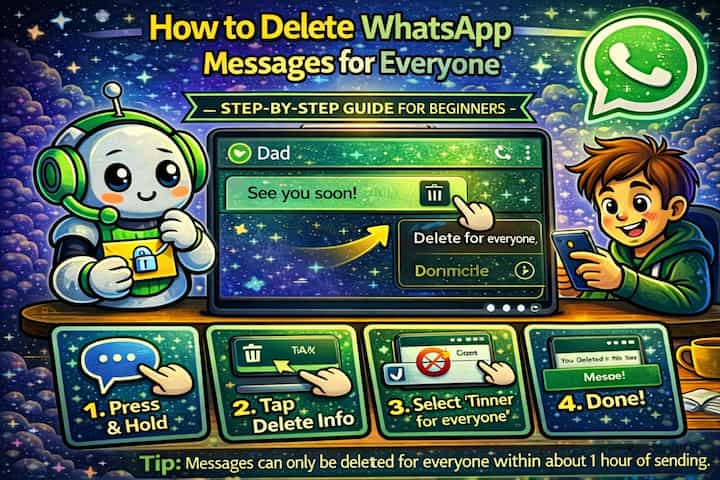
Long-press the message you want to delete, tap the trash icon, then select Delete for Everyone. You have approximately 60 hours after sending to use this option - after that, it disappears and you can only delete the message from your own device. The recipient will see a "This message was deleted" placeholder where the original message was.
What This Guide Actually Helps You Do
This guide is designed for readers who want to change privacy or safety settings without misunderstanding what other people can still see. It adds value beyond the basic menu path by explaining which signals are hidden, which ones remain visible, and whether the change affects one conversation, one contact, or the whole account. That matters because privacy features are easy to overestimate, especially when screenshots, notifications, profile visibility, or group behavior still reveal context.
The practical goal is to leave you with a result you can verify, not just a menu path you followed. It also keeps the limits visible: this guide does not pretend to offer total invisibility, message secrecy against screenshots, or a way to bypass another person's privacy settings. It shows the reliable path, the trade-offs, and the checks that help you avoid repeating the same mistake.
Real Situations Where Speed Is Everything
This feature exists for a reason, and most people who use it are in one of a few specific situations.
You sent a message to the wrong contact. It's one of those things that happens in a split second - you're replying quickly, the wrong name is at the top of your recent chats, and you've already hit send before you realize. Whether it's something personal, something meant for a different group, or just something that would be awkward in the wrong context, the window to delete it for everyone is your only real option for damage control. The faster you notice, the better.
You shared something you immediately regretted - a photo, a document, a piece of information. Maybe it was sent in frustration, maybe it contained details you shouldn't have included, maybe you attached the wrong file. In professional contexts especially, this can feel genuinely high-stakes. A contract with incorrect terms, a message to a client that included internal commentary, a photo that wasn't meant for that conversation. Acting within the time window is the difference between a recoverable mistake and one that lives in someone's chat history permanently.
You sent a message with a serious typo or error that changes the meaning entirely. Not every deletion is about sensitive content - sometimes it's just about accuracy and professionalism. A number with a wrong digit, a name spelled incorrectly in an important context, a message that reads completely differently than you intended. Deleting and resending correctly is cleaner than following up with a correction that draws more attention to the mistake.
Before You Delete: One Thing to Know
"Delete for Everyone" leaves a visible trace. When you delete a message using this feature, it doesn't vanish silently - it's replaced with a grey italic line that says "This message was deleted." Everyone in the conversation can see that a message existed and was removed. The content is gone, but the action is visible. In some situations, that placeholder itself can raise questions.
This is intentional on WhatsApp's part - it prevents people from secretly editing the record of a conversation. If you need the deletion to be invisible, it won't be.
How to Delete a Message for Everyone - Step by Step
Step 1 - Open the Conversation
Open WhatsApp and navigate to the chat containing the message you want to delete.
Step 2 - Find the Message
Scroll to the message you want to remove. If the conversation is long and the message is recent, it will be near the bottom.
Step 3 - Long-Press to Select It
Press and hold the message until it's selected - you'll see a checkmark appear and an action bar appear at the top of the screen.
Step 4 - Tap the Delete Icon
Tap the trash icon in the action bar at the top of the screen.
Step 5 - Choose "Delete for Everyone"
A dialog will appear with three options: Delete for Me, Delete for Everyone, and Cancel. Tap Delete for Everyone.
If the "Delete for Everyone" option is greyed out or not visible, the time window has already closed and you can only delete the message from your own device.
Step 6 - Confirm
Tap to confirm the deletion. The message is immediately replaced with the "This message was deleted" placeholder on both sides of the conversation.

What Changes After You Delete for Everyone
The moment you confirm, the message content disappears from both your chat and the recipient's - simultaneously. On your end, you'll see the placeholder. On their end, the same. There's no delay, no notification beyond the in-chat placeholder, and no way for the recipient to retrieve the original content through WhatsApp.
If the message contained media - a photo, a video, a voice note - and the recipient had auto-download enabled, that file may already be saved to their device's storage before you deleted it. Deleting the message removes it from the WhatsApp chat, but it doesn't reach into their camera roll or downloads folder. That copy, if it exists, is outside WhatsApp's control.
Read receipts are also unaffected by deletion. If the message was already read before you deleted it - shown by blue ticks - the act of deleting doesn't change the fact that it was read, and it doesn't remove the blue ticks retroactively.
Advanced Tips: Using This Feature More Effectively
Most people only think about deletion after something goes wrong. These approaches help you use it more deliberately.
Delete multiple messages at once if you need to clean up a series. You don't have to delete messages one by one. After long-pressing the first message to select it, tap additional messages to add them to the selection before tapping the trash icon. You can delete several messages in a single action as long as they're all within the time window - useful if you sent a series of messages that all need to go.
Turn off auto-download on both sides to prevent media from being saved before you can delete it. This is a proactive step, not a reactive one. Go to Settings -> Storage and Data -> Media Auto-Download and restrict automatic downloads to Wi-Fi only, or disable them entirely. If you regularly share media that could be sensitive, this gives you more time between sending and the recipient having a locally saved copy - which is the main gap that "Delete for Everyone" can't close.
Act before the notification is expanded, not just before it's read. On many Android devices, notification banners show a preview of the message content before it's opened. If the recipient's phone is sitting on a table with notifications visible, they may read the content from the banner even if they never open WhatsApp. You can't control what appears in notification previews, but acting within the first few seconds gives you the best chance of deleting before the phone displays or expands a banner. This isn't guaranteed - but it's the closest thing to a real-time fix.
Use "Delete for Me" strategically to keep your own chat history clean without triggering the placeholder. If you've sent something to the wrong person and the time window has already closed - or if you don't want to draw attention to the deletion by leaving a placeholder - "Delete for Me" at least removes the message from your own view. It doesn't help the recipient, but it keeps your side of the conversation clean and prevents you from having to look at the mistake every time you open that chat.
What This Feature Can't Undo
The time limit is the most obvious constraint, but it's worth spelling out the full picture. If the recipient saw the message before you deleted it, they know what it said. The placeholder confirms that something was there and removed, which in some contexts draws more attention than the original message would have. Deleting a sensitive message that was already read doesn't erase the knowledge - it just removes the text.
Notification previews are a persistent gap. Depending on the recipient's phone settings, part or all of the message content may have appeared in a lock screen notification or a banner before you acted. WhatsApp doesn't control what's been displayed outside the app.
Media auto-download is another gap that often surprises people. Photos and videos sent in a WhatsApp chat can be saved to the recipient's camera roll automatically, and deleting the message from WhatsApp doesn't affect files already saved to their device storage. The same applies to screenshots - if the recipient captures the screen before you delete, that image lives outside WhatsApp entirely.
And finally, in group chats, the window for action is effectively shorter in practice because multiple people may see the message before you react. "Delete for Everyone" still works for groups - it removes the message for all members simultaneously - but the odds that at least one person saw it increase with group size.
Frequently Asked Questions
If I delete a message for everyone, can the recipient still see it in their notification history on Android? Yes, potentially. Some Android devices and launchers maintain a notification log that stores dismissed notifications - including WhatsApp message previews. If the recipient checks their notification log before it clears, they may be able to see the content of the deleted message there. This is a device-level issue that WhatsApp can't control, and it varies depending on the phone manufacturer and Android version.
Does "Delete for Everyone" work if the recipient is using an older version of WhatsApp? In most cases, yes - but older versions of WhatsApp (from several years ago) may not fully support the feature, meaning the message might not be deleted on their end. In current versions across both Android and iPhone, the feature works consistently. If someone is running a very outdated version of the app, the deletion may only work on your side.
Why did "Delete for Everyone" disappear as an option before 60 hours had passed? The 60-hour window is a general guideline, but the feature's availability can sometimes be affected by connectivity issues. If your phone was offline when you tried to delete, or if the message hadn't fully synced, the option may have appeared unavailable even within the time window. Reconnecting and trying again sometimes restores the option. If it's genuinely gone, the window has closed.
Can I delete a message for everyone in a group chat the same way? Yes. The process is identical - long-press, tap the trash icon, select "Delete for Everyone." In a group, the message is removed for all members simultaneously, and each member sees the "This message was deleted" placeholder. The same time limit applies, and the same limitations around already-saved media and notification previews exist.
Does deleting a message for everyone affect the conversation's backup on Google Drive or iCloud? It depends on timing. If a backup was made after you deleted the message, the backup reflects the deletion - the placeholder, not the original content. If a backup was made before you deleted it, that earlier backup still contains the original message. Someone who restores from that older backup would see the message again. This is an edge case, but it's worth knowing if the content is genuinely sensitive.
What To Verify Before You Finish
A good finish looks like this: the privacy behavior is clear in a real conversation and you know what the other person will still be able to notice. Before moving on, do a small real-world test: try the setting with a trusted contact or secondary device, then compare the visible profile, notification, or message state from both sides.
If someone can still see something you expected to hide, the most likely explanation is that the feature protects only a specific layer of privacy and does not control screenshots, saved media, group history, forwarded content, or old notifications. In that case, use the troubleshooting or limitation section above first, because repeating the same taps usually hides the real cause.
Related Guides
Read next: Send disappearing messages on WhatsApp | Schedule messages on WhatsApp | Recover deleted messages on WhatsApp
Final Thoughts
"Delete for Everyone" is a genuinely useful feature - but it works best when you treat it as a fast-reaction tool rather than a safety net you can lean on. The 60-hour window is generous, but the first few seconds after sending are when it matters most. Know the steps, act quickly, and go in understanding what it can and can't fix. For anything that gets seen before you can delete it, the only real solution is a follow-up conversation.