How to Create WhatsApp Broadcast Lists (And Why Most People Set Them Up Wrong)
There's a specific kind of frustration that comes with needing to send the same message to twenty different people. You either send it one by one - which takes forever - or you create a group chat, which immediately turns into a conversation you didn't ask for. WhatsApp Broadcast Lists exist exactly in that gap. One message, many recipients, each person receives it as if you messaged them individually, and their replies come back to you in private without anyone else seeing them.
The feature works well - when it's set up correctly. One technical requirement trips up almost everyone the first time, and it's worth understanding before you send anything.
Quick Answer (For Those in a Hurry)
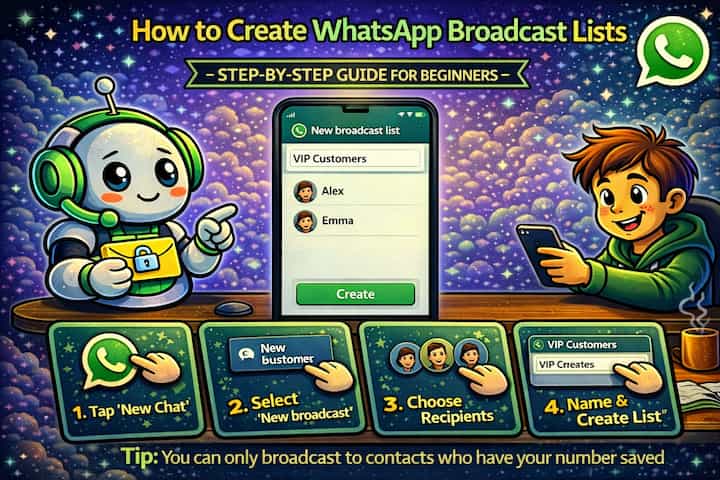
On Android, tap the three dots in the top-right corner of WhatsApp and select New Broadcast. On iPhone, go to the Chats tab, tap Broadcast Lists at the top, then New List. Select your contacts, tap the checkmark to create the list, then send your message. Each recipient gets it as a private message - they have no idea others received the same thing - and their replies come back to you individually.
What This Guide Actually Helps You Do
This guide is designed for readers who want to complete the task with a clear understanding of what changes inside the app. It adds value beyond the basic menu path by explaining which setting or method actually matches your situation, what changes after you use it, and where the app's limits begin. That matters because many mistakes happen when people copy the first visible menu path without checking account type, device differences, privacy effects, or rollback options.
The practical goal is to leave you with a result you can verify, not just a menu path you followed. It also keeps the limits visible: this guide does not pretend to offer a hidden workaround outside the official behavior of the app. It shows the reliable path, the trade-offs, and the checks that help you avoid repeating the same mistake.
Real Situations Where Broadcast Lists Are the Right Tool
Broadcast lists solve a problem that groups create and individual messages make worse.
You run a small business and need to send updates - promotions, appointment reminders, new arrivals - to your customers. Doing this individually means copying and pasting the same message dozens of times. Creating a group exposes your customers to each other, which most people find uncomfortable and unprofessional. A broadcast list lets you reach all of them at once while each person experiences it as a direct message from you. It scales your communication without sacrificing the personal feel.
You're a teacher, organizer, or coordinator who needs to send the same information to a defined list of people regularly. Class schedule changes, meeting reminders, event updates - any situation where the same message needs to reach a specific audience, where the audience doesn't need to interact with each other, and where you want replies to come to you individually rather than creating a group discussion. A broadcast list is exactly this: a reusable, private one-to-many channel.
You want to send a personal message - a holiday greeting, a life update, a photo - to a large number of people without it feeling like a mass email. Group messages immediately signal "I sent this to everyone." A broadcast message lands in someone's individual chat with you, feels personal, and prompts individual replies. For meaningful messages that you genuinely want people to receive personally rather than as part of a crowd, this framing matters.
Before You Create One: One Thing to Know
A broadcast message is only delivered to recipients who have your phone number saved in their contacts. If someone hasn't saved your number, the message is sent from your end but never arrives on theirs - and you get no error or notification. This is the single most common reason people think broadcast lists aren't working. If your message isn't reaching certain people, this is almost certainly why.
This is by design - WhatsApp uses it as a consent mechanism to reduce spam. For business use, this means your customers need to have saved your number before you can reach them via broadcast.
How to Create a WhatsApp Broadcast List - Step by Step
Step 1 - Open WhatsApp
Open WhatsApp on your phone and navigate to the main chat list screen.
Step 2 - Access the Broadcast Feature
On Android: tap the three dots in the top-right corner of the main screen and select New Broadcast.
On iPhone: tap Chats at the bottom of the screen, then look for Broadcast Lists at the very top of the chat list and tap New List.
Step 3 - Create a New Broadcast List
You'll be taken to the contact selection screen. This is where you choose who will receive messages from this list.
Step 4 - Select Your Contacts
Search for or scroll through your contacts and tap each person you want to include. A checkmark confirms their selection. You can add up to 256 contacts per broadcast list. If you need to reach more people, you'll need to create additional lists.
Step 5 - Confirm and Create the List
Tap the checkmark or Create button. Your broadcast list is created and appears in your chat list - usually labeled as "Broadcast List" unless you rename it.
Step 6 - Write and Send Your Message
Tap the broadcast list to open it and type your message exactly as you want each person to receive it. You can include text, photos, videos, documents, or voice messages - anything you'd send in a normal chat. Tap send when ready.
Step 7 - Monitor Individual Deliveries
Your message is now sent simultaneously to everyone on the list. Each recipient receives it as an individual message from you, in their private chat with your contact. From their side, it looks exactly like you messaged them directly.

What Changes After You Send a Broadcast
Once the message goes out, the experience splits: on your end, you see the broadcast list conversation with a summary of deliveries. On each recipient's end, they see only a private message from you in their individual chat - no indication it was sent to others, no group dynamic, no shared thread. If they reply, that reply comes to you privately and only you. It doesn't go to the list, it doesn't go to other recipients, it's a one-on-one conversation triggered by your broadcast.
Read receipts work the same as in regular chats - if the recipient has read receipts enabled, you'll see the blue ticks on the broadcast message. If they've disabled read receipts, you'll only see the grey delivery ticks. The broadcast list itself shows delivery status for the message, but not a breakdown of who specifically opened it unless they reply.
The list itself is reusable. You don't need to recreate it for every message. It lives in your chat list and you can send new broadcasts to the same audience whenever you need to. You can also edit the list later to add or remove contacts as your audience changes.
Advanced Tips: Using Broadcast Lists More Effectively
The basic setup covers most cases. These four approaches make the feature genuinely powerful for regular use.
Name your broadcast lists clearly so you can manage multiple ones without confusion. If you have different audiences - clients, team members, a close friend group, event attendees - create a separate list for each and name them descriptively. On Android, you can rename a list by opening it, tapping the list name at the top, and editing it. On iPhone, tap "Edit" from the Broadcast Lists screen. A name like "Clients - Paris" or "Team - Morning Shift" is infinitely more useful than "Broadcast List 3" when you're choosing which list to send to.
Ask new contacts to save your number before you add them to a list. Since delivery depends on the recipient having your number saved, proactively asking people to save it solves the delivery problem before it happens. A simple first message - "Hey, it's [Name] from [Company] - please save my number so I can send you updates directly" - serves double duty: it starts the individual conversation and ensures your future broadcasts reach them. This is standard practice for anyone using broadcast lists professionally.
Use broadcast lists for messages that don't require a response, and individual messages for conversations. Broadcast lists work best as a one-way or low-reply-volume channel. Announcements, reminders, updates, sharing information - these are natural fits. If you're sending something that will generate a lot of questions or discussion, a group chat is more appropriate because the replies can inform each other. Mixing these use cases leads to an inbox full of individual replies asking the same follow-up questions.
Combine broadcast lists with WhatsApp Business auto-replies for professional setups. If you use WhatsApp Business, you can pair broadcast lists with the greeting message and away message features to create a lightweight but functional outreach system. Send a broadcast, and anyone who replies outside business hours automatically gets an acknowledgment. It doesn't replace a CRM, but for small businesses managing customer communication entirely through WhatsApp, the combination is significantly more organized than ad-hoc messaging.
What Broadcast Lists Can't Do
The 256-contact limit per list is a genuine constraint for anyone with a large audience. There's no workaround within WhatsApp - you'll need multiple lists and the discipline to keep them updated and aligned. For audiences in the thousands, this makes broadcast lists impractical as a primary channel, and an email newsletter or a proper messaging platform is the more appropriate solution.
Broadcast lists also don't give you delivery analytics beyond basic tick status. You can't see open rates, click rates, or a breakdown of exactly who received versus who didn't - you'd need to track non-delivery manually by checking individual chats or asking recipients. For any communication where measurement matters, this is a significant gap.
Personalization beyond the message text isn't possible. Every recipient gets exactly the same message - there's no variable insertion, no "Hi [Name]" at the start, no conditional content. If you need personalized messaging at scale, you'd need to either send individually or use WhatsApp Business API with a third-party platform. For most personal and small-business use cases this isn't a problem, but it's a limit worth knowing.
Finally, the contact-saving requirement cuts both ways. You can't proactively reach people who don't have your number, which prevents genuine spam but also means broadcast lists only work within an existing relationship or one that's been intentionally established.
Frequently Asked Questions
Can recipients tell they're on a broadcast list, or does it look like a normal message? It looks like a completely normal direct message from you. There's no label, no indicator, no way for the recipient to know they're one of many people who received the same message. From their perspective, you messaged them individually - the message appears in their private chat with you, not in any shared thread. The only way they'd know is if you told them or if they received the identical message from multiple people using the same list.
If I update my broadcast list by adding new contacts, do they receive my previous messages? No. Adding a contact to an existing broadcast list gives them access to future messages only. They won't see or receive anything that was sent before they were added - the history isn't shared with new additions. If you want a new contact to have the same information as existing list members, you'd need to send it again or share it through another channel.
Why do some contacts get my broadcast message and others don't, even though I added everyone? The delivery gap is almost always the contact-saving requirement. Contacts who didn't receive your message almost certainly haven't saved your phone number. You can verify this by checking the individual chat with that person - if no conversation exists there, the number likely isn't saved. The fix is to ask them to save your number and try again, or start a direct conversation with them first to establish the contact before adding them to a list.
Does sending through a broadcast list affect whether my message shows as read - do I see blue ticks? Yes, read receipts work normally through broadcast lists. If a recipient has read receipts enabled, your message will show blue ticks in their individual chat once they've opened it. This is visible to you in their private conversation - not in the broadcast list view itself. The broadcast list summary shows delivery status, but you need to open individual chats to see read status per person.
Can I use broadcast lists on WhatsApp Business the same way as on regular WhatsApp? Yes, broadcast lists work the same way in WhatsApp Business with the same 256-contact limit and the same contact-saving requirement. The advantage in WhatsApp Business is that you can pair broadcast messaging with catalog links, quick replies, and automated messages to create a more complete outreach experience. The mechanics of creating and sending through the list are identical between the two versions.
What To Verify Before You Finish
A good finish looks like this: the setting or workflow works in a real chat, server, device, or account instead of only looking correct in the menu. Before moving on, do a small real-world test: repeat the action once in a low-risk situation and check the visible result from the other side when that is possible.
If the option is missing, the result looks different, or nothing changes after you follow the steps, the most likely explanation is that your app version, account permissions, device setup, or conversation type is probably different from the example used in the guide. In that case, use the troubleshooting or limitation section above first, because repeating the same taps usually hides the real cause.
Related Guides
Read next: Stop auto-download on WhatsApp | Create a WhatsApp group step by step | Use WhatsApp Web on PC
Final Thoughts
Broadcast lists are one of those WhatsApp features that people discover late and immediately wish they'd known about sooner. Once you understand the contact-saving requirement and work around it, the feature runs cleanly - one send, many private conversations, replies that come back to you individually. For anyone who regularly communicates the same information to a defined group of people, it's significantly better than the alternatives. Set up one list, name it clearly, and use it for the next thing you'd otherwise send twenty times.